이번 작업은 상당히 까다로운 작업이 많았다.
일단 UI 작업과 월드맵을 만드는 과정이 복잡하고 힘들었다.(안해봐서 그런걸지도...)
미니맵 만들기
미니맵은 현재 내가 어느 위치에 있는지 표기해야 했다. 이는 항상 표시되어야 했으며 전투중에는 가려져야 했다.
미니맵을 만드는 것은 어렵지 않았다.
플레이어의 항공뷰 카메라를 만들고 그것을 UI 머티리얼로 뿌린다음 그걸 UI에 이미지에 적용하는 방식이다.
// - MiniMapCamera: 미니맵 카메라
UPROPERTY(EditAnywhere, BlueprintReadWrite, Category = Camera, Meta = (AllowPrivateAccess = "true"))
TObjectPtr<class USceneCaptureComponent2D> MiniMapCamera;

// - MiniMapCameraBoom: 미니맵 카메라를 위한 스프링암
UPROPERTY(EditAnywhere, BlueprintReadWrite, Category = Camera, Meta = (AllowPrivateAccess = "true"))
TObjectPtr<class USpringArmComponent> MiniMapCameraBoom;
--------------------------------.cpp
// MiniMap
MiniMapCameraBoom = CreateDefaultSubobject<USpringArmComponent>(TEXT("MiniMapSpringArm"));
MiniMapCameraBoom->SetupAttachment(RootComponent);
//위에서 아래로 내려다 보는 각도를 위해 회전
MiniMapCameraBoom->SetWorldRotation(FRotator::MakeFromEuler(FVector(0.f, -90.f, 0.f)));
MiniMapCameraBoom->bUsePawnControlRotation = true;
MiniMapCameraBoom->bInheritPitch = false;
MiniMapCameraBoom->bInheritRoll = false;
MiniMapCameraBoom->bInheritYaw = true;

MiniMapCamera = CreateDefaultSubobject<USceneCaptureComponent2D>(TEXT("MinimapCapture"));
//카메라 암에 어태치
MiniMapCamera->SetupAttachment(MiniMapCameraBoom);
//카메라 투영 타입을 직교로 전환하여 거리감이 없는 이미지로 구현
MiniMapCamera->ProjectionType = ECameraProjectionMode::Orthographic;
//카메라에서 캡처될 크기 ( 클수록 축소되 보이는 미니맵 )
MiniMapCamera->OrthoWidth = 2000;이렇게 설정 해주면 된다.
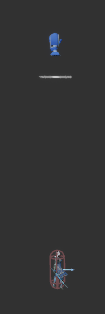
이렇게만 해도 좋지만 플레이어의 위치를 표기하기 위해서 PaperSprite를 하나 만들어준다.
이걸 카메라와 가까이 두어서 플레이어의 현 위치를 표기한다.
세팅
이제 카메라를 만들었으니 카메라에 보여줘야할 타겟을 만들어줘야한다.
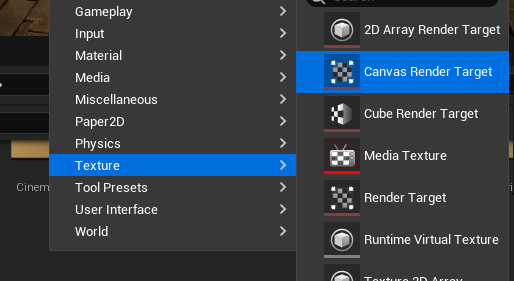
이렇게 만든 타겟의 머티리얼을 만들어준다. 즉 이 타겟은 머티리얼을 따라가는거다.
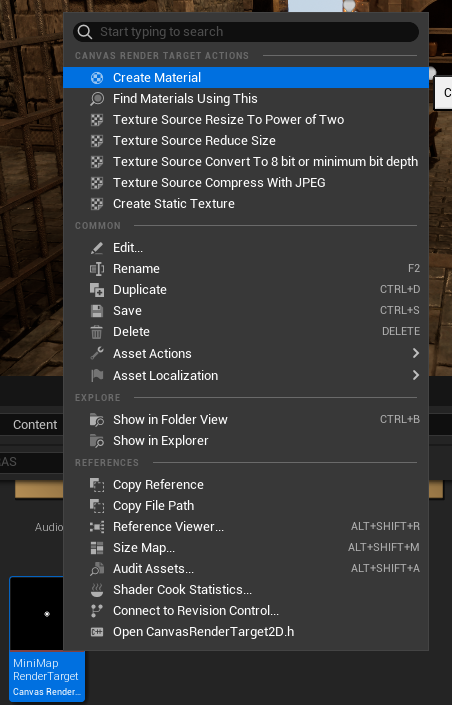
만든 머티리얼은 UI 머티리얼로 바꾸고 다음과 같이 설정해준다.
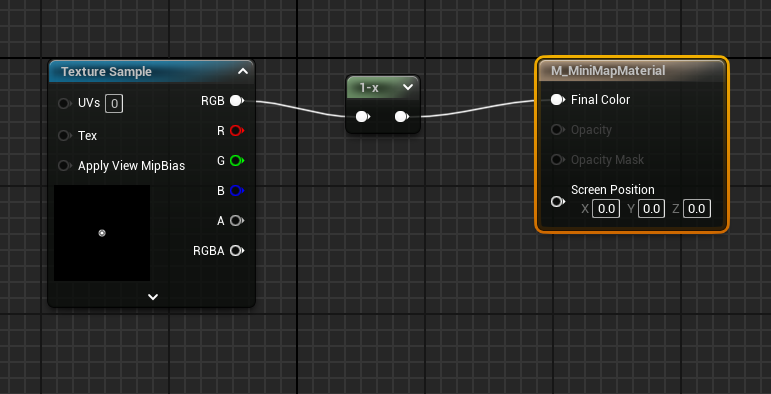
단순하게 UserInterface를 만들고 Texture Sample의 RGB를 최종 값으로 넣어도 괜찮지만,
나는 내가 돌아다닐 공간은 흰색 그 외에는 검정색을 표시하고 싶어 색을 반전해 주었다.
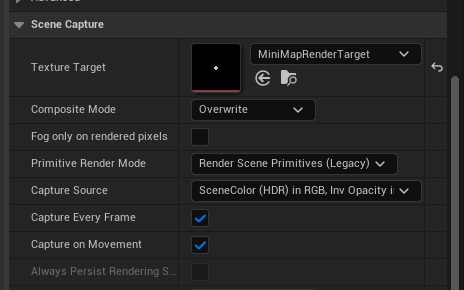
아까 만든 미니맵 카메라에서 Target을 정해준다.
UI 세팅
기존의 UI에 MiniMap을 담당할 Image를 만든다.
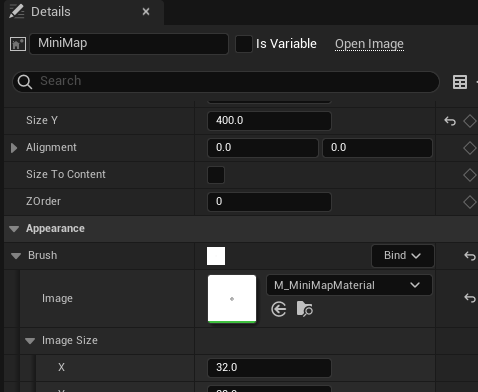
이때 이미지는 위에서 만든 머티리얼로 만들어준다.
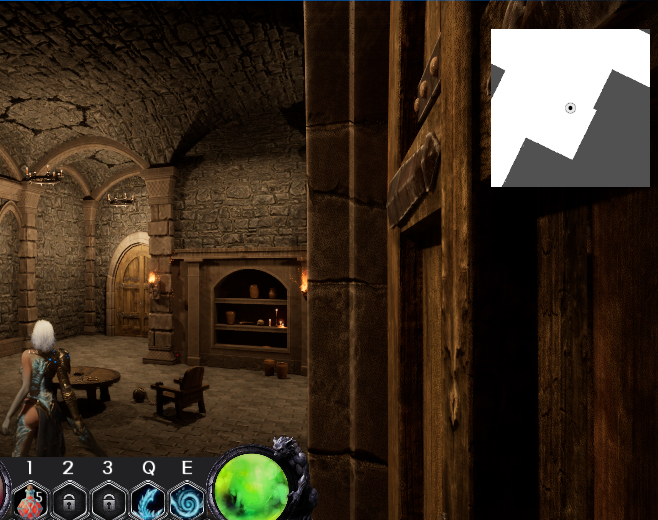
그럼 다음과 같은 결과를 얻을 수 있다.
월드맵 만들기
지금 프로젝트에서는 맵이 매 판마다 랜덤하게 생성된다.
따라서 맵이 랜덤하게 생성될 때 마다 월드맵을 생성해야만 한다.
그리고 월드맵의 사이즈가 얼마나 될지 모르니 (랜덤하게 생성되다보니 가로로 길게만 생길 수도 있음) 스크롤이 가능하게 만들어야할 것이다.
UI
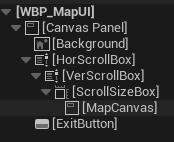
UI의 구성은 다음과 같다.
가로로 가능한 스크롤과 세로로 가능한 스크롤을 두고 그 안에 월드맵의 위젯들이 배치될 Canvas를 두는데 이때 스크롤 사이즈를 측정하기 위해 SizeBox를 상위 부모로 둔다.
Size Box 의 Size는 Auto로 두어 Canvas의 크기를 자동으로 측정해 스크롤하게 만든다.
이 Canvas 안에 들어갈 위젯은 버튼이다.
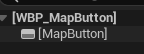
버튼으로 만든 이유는 만들어진 월드맵에서 버튼을 클릭하면 해당 맵 위치로 이동하기 위함이다.
코드
코드의 흐름은 다음과 같다.
MapGenerator 에서 맵 만들기
|
만들어진 청크(맵) 플레이어 UICompoenent에 건네주기
|
UIComponent에서 WorldMap UI를 초기화
|
WorldMapUI에서 생성된 청크 들을 기반으로 Map UI 위젯들 생성
따라서 중요한건 맨 마지막 부분이다.
void URASMapUI::BuildMapUI(const TArray<TObjectPtr<ARASChunk>>& Spawned, ARASChunk* StartChunk, class ARASPlayer* InPlayer)
{
	if (!MapCanvas || !MapButtonClass || !IsValid(StartChunk))
		return;
	if (InPlayer == nullptr) return;

	Player = InPlayer;
	ExitButton->OnClicked.AddDynamic(this, &URASMapUI::ExitButtonClick);

	MapCanvas->ClearChildren();

	/* 0. 월드 → 셀 좌표 변환 함수 ------------------------------------------------*/
	const FVector  WorldOrigin = StartChunk->GetActorLocation();
	auto WorldToCell = [&](const FVector& Anchor) -> FIntPoint
		{
			const FVector D = Anchor - WorldOrigin;
			return FIntPoint(
				FMath::RoundToInt(D.X / RAS_CellWorldUnit),
				FMath::RoundToInt(D.Y / RAS_CellWorldUnit));
		};

	/* 1. BFS 로 모든 청크 조사 ---------------------------------------------------*/
	struct FChunkInfo
	{
		ARASChunk* Chunk = nullptr;
		FIntPoint  Cell;   // 셀 크기
		FIntPoint  GPos;   // 원점 기준 셀 위치
		float      YawSnap = 0.f;
	};
	TArray<FChunkInfo> ChunkInfos;

	TQueue<ARASChunk*> Queue;
	TSet  <ARASChunk*> Visited;
	Visited.Add(StartChunk);
	Queue.Enqueue(StartChunk);

	FIntPoint MinXY(INT_MAX, INT_MAX);
	FIntPoint MaxXY(INT_MIN, INT_MIN);

	auto PushInfo = [&](ARASChunk* C)
		{
			const FIntPoint Cell = GetCellSize(C);
			const FIntPoint GPos = WorldToCell(C->CollisionBox->Bounds.Origin);
			float     Yaw = 90.f * FMath::RoundToInt(C->GetActorRotation().Yaw / 90.f);
			if (C->GetMapType() == ERASMapType::Corridor)
			{
				ARASCorridor* Corridor = Cast<ARASCorridor>(C);
				if (Corridor && Corridor->GetCorridorType() != ERASCorridorType::None)
				{
					FRotator Rot = C->GetActorRotation();
					float CYaw = Rot.Yaw;
					if (CYaw < 0.f) CYaw += 360.f;
					if (CYaw >= 0.f && CYaw < 80.f)
					{
						Yaw = 90.f;
					}
					else if (CYaw >= 80.f && CYaw < 170.f)
					{
						Yaw = 180.f;
					}
					else if (CYaw >= 170.f && CYaw < 260.f)
					{
						Yaw = 270.f;
					}
					else
					{
						Yaw = 0.f;
					}
				}
			}
			ChunkInfos.Add({ C, Cell, GPos, Yaw });

			MinXY.X = FMath::Min(MinXY.X, GPos.X - Cell.X);
			MinXY.Y = FMath::Min(MinXY.Y, GPos.Y - Cell.Y);
			MaxXY.X = FMath::Max(MaxXY.X, GPos.X + Cell.X);
			MaxXY.Y = FMath::Max(MaxXY.Y, GPos.Y + Cell.Y);
		};

	while (!Queue.IsEmpty())
	{
		ARASChunk* Cur = nullptr;
		Queue.Dequeue(Cur);
		if (!IsValid(Cur))
			continue;

		PushInfo(Cur);

		for (ARASDoor* D : Cur->GetDoors())
		{
			if (!IsValid(D))             continue;
			ARASChunk* N = D->GetConnectedChunk();
			if (!IsValid(N) || Visited.Contains(N)) continue;
			Visited.Add(N);
			Queue.Enqueue(N);
		}
	}

	/* 2. 좌표 보정량 (Offset) 계산 ----------------------------------------------*/
	const FIntPoint Offset(-MinXY.X, -MinXY.Y);   // 셀 단위

	/* 3. 위젯 생성 및 배치 -------------------------------------------------------*/
	for (const FChunkInfo& Info : ChunkInfos)
	{
		if (!IsValid(Info.Chunk))
			continue;

		URASMapButton* Tile = CreateWidget<URASMapButton>(GetWorld(), MapButtonClass);
		Tile->Init(Info.Chunk, Player);
		MapButtons.Add(Tile);
		if (Info.Chunk->GetMapType() == ERASMapType::Corridor)
			UE_LOG(LogTemp, Log, TEXT("%f"), Info.YawSnap);
		const FVector2D SizePx(
			Info.Cell.X * RAS_CellPixel,
			Info.Cell.Y * RAS_CellPixel);

		const FVector2D PosPx(
			(Info.GPos.X + Offset.X) * RAS_CellPixel / 2,
			(Info.GPos.Y + Offset.Y) * RAS_CellPixel / 2);

		if (UCanvasPanelSlot* S = Cast<UCanvasPanelSlot>(MapCanvas->AddChild(Tile)))
		{
			S->SetAutoSize(false);
			S->SetSize(SizePx);
			S->SetAlignment(FVector2D(0.5f, 0.5f));
			S->SetPosition(PosPx);
			Tile->SetRenderTransformPivot(FVector2D(0.5f, 0.5f));
			Tile->SetRenderTransformAngle(Info.YawSnap);
		}
	}

}
FIntPoint URASMapUI::GetCellSize(const class ARASChunk* Chunk) const
{
    const FVector2D SizeCm = Chunk->ChunkSize;
    const int32  W = FMath::Max(1, FMath::RoundToInt(SizeCm.X / RAS_CellWorldUnit));
    const int32  H = FMath::Max(1, FMath::RoundToInt(SizeCm.Y / RAS_CellWorldUnit));
    return FIntPoint(W, H);
}이렇게 해서 위젯들을 배치할 수 있다.
키 아이디어는 BFS를 통해 시작 청크부터 차례대로 갈 수 있는 모든 영역을 체크하고 그 위치와 Offset 회전 등을 기억해 캔버스에 배치하는 것이다.(BFS를 사용한 이유는 시작 청크에서 갈 수 없는 청크는 없으며, 모든 경로가 존재하게 생성했기 때문이다)
void URASMapUI::FoundMapShow()
{
	for (URASMapButton* Button : MapButtons)
	{
		if (Button)
		{
			if (Button->CheckVisitChunk())
			{
				Button->SetVisibility(ESlateVisibility::Visible);
			}
			else
			{
				Button->SetVisibility(ESlateVisibility::Hidden);
			}
			Button->SetCurrentChunk();
		}
	}
}
이렇게 생성된 맵들은 MapUI를 키고 끌 때마다 발견이 된 장소는 Visible 하고 아닌 장소는 Hidden으로 지정한다.
Map Button
이제 월드맵에 들어가는 MapButton을 만들어보자.
클릭 시 해당 청크로 이동해야하며, 해당 청크에 내가 있는지 여부도 색깔로 알려주어야한다.
void URASMapButton::Init(class ARASChunk* InChunk, class ARASPlayer* InPlayer)
{
	if (InChunk) Chunk = InChunk;
	if (InPlayer) Player = InPlayer;
	if (InChunk && InChunk->GetActorLocation() == FVector::ZeroVector)
	{
		MapButton->WidgetStyle.Normal.TintColor = FSlateColor(FLinearColor::Green);
		MapButton->WidgetStyle.Hovered.TintColor = FSlateColor(FLinearColor::Green);
		MapButton->WidgetStyle.Pressed.TintColor = FSlateColor(FLinearColor::Green);
	}

	if (InChunk->GetMapType() == ERASMapType::Corridor)
	{
		ARASCorridor* Corridor = Cast<ARASCorridor>(Chunk);
		if (Corridor)
		{
			if (Corridor->GetCorridorType() == ERASCorridorType::BentLeft)
			{
				if (LeftCorridorImage)
				{
					SetButtonImage(LeftCorridorImage);
				}
			}
			else if (Corridor->GetCorridorType() == ERASCorridorType::BentRight)
			{
				if (RightCorridorImage)
				{
					SetButtonImage(RightCorridorImage);
				}
			}
		}
	}
}

void URASMapButton::OnButtonClicked()
{
	if (Chunk && Player)
	{
		if (Player->GetCurrentChunk() == Chunk) return;
		// 맵 순간이동
		Player->TeleportToChunk(Chunk);
	}
}

bool URASMapButton::CheckVisitChunk()
{
	if (Chunk)
	{
		return Chunk->IsArrive();
	}
	return false;
}

void URASMapButton::SetCurrentChunk()
{
	if (!MapButton || !Chunk) return;

	FLinearColor NormalColor;
	FLinearColor HoveredColor;
	FLinearColor PressedColor;

	if (CheckCurrentChunk())
	{
		NormalColor = FLinearColor::Red;
		HoveredColor = FLinearColor(1.f, 0.f, 0.f, 0.8f);
		PressedColor = FLinearColor(1.f, 0.f, 0.f, 0.6f);
	}
	else
	{
		if (Chunk->GetActorLocation() == FVector::ZeroVector)
		{
			NormalColor = FLinearColor::Green;
			HoveredColor = FLinearColor(0.f, 1.f, 0.f, 0.8f);
			PressedColor = FLinearColor(0.f, 1.f, 0.f, 0.6f);
		}
		else
		{
			NormalColor = FLinearColor::White;
			HoveredColor = FLinearColor(1.f, 1.f, 1.f, 0.8f);
			PressedColor = FLinearColor(1.f, 1.f, 1.f, 0.6f);
		}
	}

	FButtonStyle NewStyle = MapButton->WidgetStyle;
	NewStyle.Normal.TintColor = FSlateColor(NormalColor);
	NewStyle.Hovered.TintColor = FSlateColor(HoveredColor);
	NewStyle.Pressed.TintColor = FSlateColor(PressedColor);

	MapButton->SetStyle(NewStyle);
}

void URASMapButton::SetButtonImage(TObjectPtr<class UTexture2D> MyTexture)
{
	FSlateBrush NormalBrush;
	NormalBrush.SetResourceObject(MyTexture);
	NormalBrush.ImageSize = FVector2D(MyTexture->GetSizeX(), MyTexture->GetSizeY());

	FButtonStyle ButtonStyle = MapButton->WidgetStyle;
	ButtonStyle.Normal = NormalBrush;

	FSlateBrush HoveredBrush = NormalBrush;
	HoveredBrush.TintColor = FLinearColor(1.0f, 1.0f, 1.0f, 0.8f);
	ButtonStyle.Hovered = NormalBrush;

	FSlateBrush PressedBrush = NormalBrush;
	PressedBrush.TintColor = FLinearColor(1.0f, 1.0f, 1.0f, 0.6f);
	ButtonStyle.Pressed = NormalBrush;

	MapButton->SetStyle(ButtonStyle);
}

bool URASMapButton::CheckCurrentChunk()
{
	if (Chunk && Player)
	{
		return Player->GetCurrentChunk() == Chunk;
	}
	return false;
}청크에 맞는 버튼의 이미지를 설정해주고, 플레이어가 해당 청크에 존재할 경우 색상을 변경한다.
그리고 클릭 시 플레이어를 해당 청크로 이동하는데
void ARASPlayer::TeleportToChunk(class ARASChunk* InChunk)
{
	if (CurrentChunk == InChunk) return;
	if (bInBattle) return;
	SetCurrentChunk(InChunk);
	GetUIComponent()->HideMapUI();
	FVector Pos = InChunk->GetActorLocation() + InChunk->GetActorForwardVector() * 100 + FVector(0, 0, 200.f);
	FRotator Rot = InChunk->GetActorRotation();
	SetActorLocationAndRotation(Pos, Rot, false, nullptr, ETeleportType::TeleportPhysics);
}다음과 같이 코드를 작성해서 해결할 수 있다.
결과
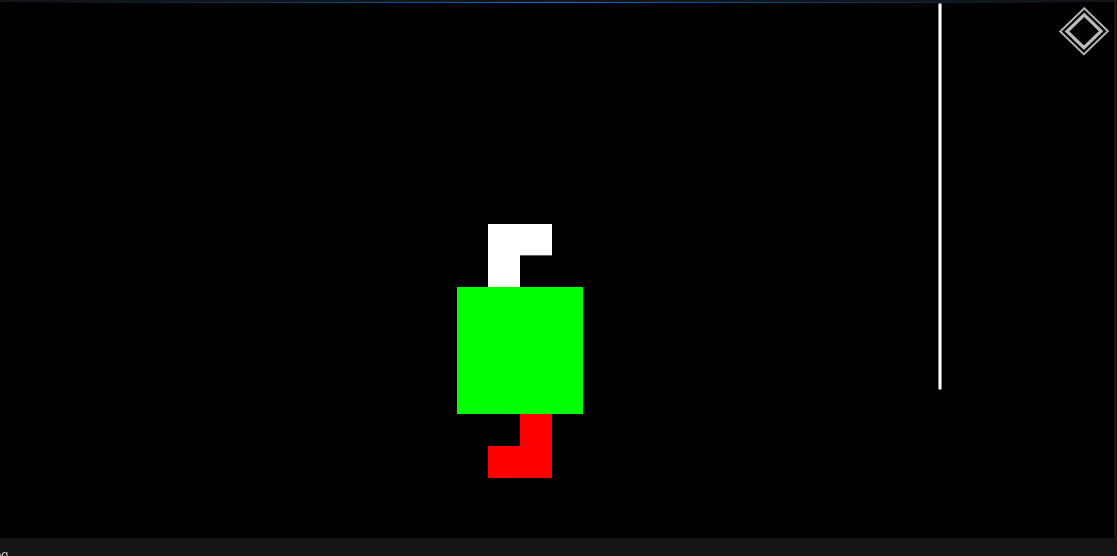
이런식으로 밝혀진 부분만 보이며 시작 청크는 초록색, 현재 위치한 청크는 빨간색 아닌경우는 흰색이다.
전부 맵이 보이는 경우는 다음과 같다.
'Unreal Engine 5 > ProjectRAS' 카테고리의 다른 글
| [UE5] ProjectRAS - Npc 만들기 (3) | 2025.07.01 |
|---|---|
| [UE5] ProjectRAS - 메인 Title UI와 메뉴 UI 만들기 (0) | 2025.06.11 |
| [UE5] ProjectRAS - 몬스터 스폰하기, Clothes 적용하기 (0) | 2025.05.28 |
| [UE5] ProjectRAS - UI 스킬 쿨타임 과 포션 마시기 (0) | 2025.05.21 |
| [UE5] ProjectRAS - 보스 패턴 제작하기 (0) | 2025.05.16 |